
Keyword Search
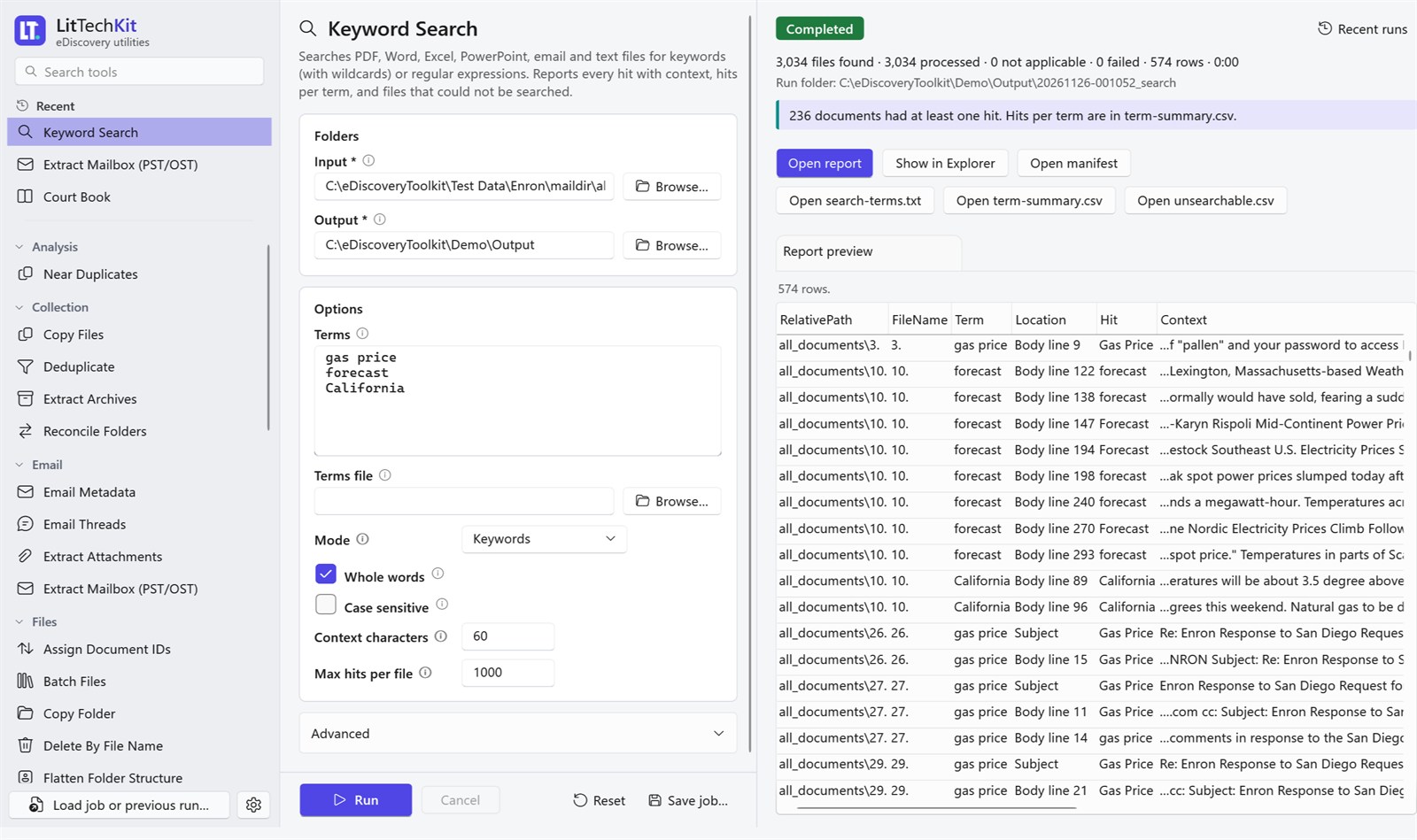
Searches PDF, Word, Excel, PowerPoint, email, RTF and text files for keywords or regular expressions, listing every hit with its location and context, hits per term, and every file that could not be searched.
Keyword Search reads the text of each document and reports every hit as a row: the file, the term, where it was found (for example Page 2, a sheet and cell, Slide 3 notes, or an email's Subject) and the surrounding text. It searches parts of documents that are easy to miss, including Word tables, headers, footers, comments and tracked deletions, hidden Excel sheets and formulas, and PowerPoint notes. Word, Excel and PowerPoint 97-2003 files are read without Office.
Alongside the hits it writes a search term report (hits and documents per term) and an exceptions report of files that could not be searched, or only partly, with the reason. A file in the exceptions report has not been cleared: "no hits" does not apply to what was not searched.
Use it when
- You need to run agreed search terms over a set of documents and report hits per term.
- You want to find documents mentioning a person, project or phrase before review or production.
- You need to find patterns such as account numbers, tax file numbers or phone numbers (Regex mode).
- You want to check whether privileged or confidential terms appear in a set about to be produced.
How to run it
- Choose the folder of documents as Input, and an Output folder outside it.
- Type the search terms into Terms, one per line, or choose a Terms file (or both).
- Set Mode to Keywords or Regex, and check whole-words and case-sensitive.
- Adjust Context characters if you want more or less surrounding text.
- Click Run.
- Use Open report for the hits, then open
term-summary.csvandunsearchable.csv.
Settings
Every setting has the same help beside it in the app. On the command line, pass each as --name value; ltk help search lists them.
Settings
| Setting | What it does | Type and default |
|---|---|---|
Terms--terms |
Search terms, one per line. Keywords: phrases are fine, * matches any letters (contract*), ? matches one letter. Lines starting with '# ' (hash and space) are comments. In Keywords mode, phrases are fine and any run of spaces in a term matches any spacing or line break in the text. * matches any number of letters or digits (contract* finds contract, contracts and contractor) and ? matches exactly one. Lines starting with # (hash then space) are comments, but #1234 is searched as a term. Repeated terms are used once. |
text (lines) empty |
Terms file--terms-file |
Optional text file of search terms, one per line. Combined with the terms above. | file empty |
Mode--mode |
Keywords (words and phrases with * and ? wildcards) or Regex (regular expressions, for patterns like account numbers). Regex uses .NET regular expressions. If any term is not a valid expression, the run stops before searching and lists the bad terms. A pattern that takes more than two seconds on a file is stopped for that file, and the file is listed in unsearchable.csv as partly searched. |
choice: Keywords, RegexKeywords |
Whole words--whole-words |
Keywords only: match whole words, so 'contract' does not hit 'subcontractor'. Use * to widen a term on purpose. On by default, so contract does not hit subcontractor. Add * to widen a single term rather than turning this off. For Chinese, Japanese, Thai and other scripts written without spaces, word boundaries are not applied. |
yes/notrue |
Case sensitive--case-sensitive |
Match upper/lower case exactly. | yes/nofalse |
Context characters--context |
Characters of surrounding text to show either side of each hit. | number60 |
Max hits per file--max-hits-per-file |
Stop listing hits in a file after this many (the term summary still counts every hit, and a note says so). After this many hit rows in one file, further hits are not listed, but they are still counted in term-summary.csv. A note names how many files reached the limit. |
number1000 |
Common settings
| Setting | What it does | Type and default |
|---|---|---|
Input required--input |
Folder (or single file) to read. It is opened read-only and never modified. | folder empty |
Output required--output |
Folder for reports. Must not be inside the input folder. Each run gets its own sub-folder. | folder empty |
Recurse--recurse |
Include sub-folders. | yes/notrue |
Extensions--extensions |
Only process these extensions (e.g. .pdf, .docx). Empty means the tool's default set. | list empty |
Parallelism--parallelism |
Files processed at once. Use 1-2 for spinning disks or network shares. | number4 |
What you get
Each run creates its own folder inside the output folder, with the report search.csv, errors.csv and manifest.json (see Run folders and manifests).
search.csv: One row per hit: RelativePath, FileName, Term, Location, Hit (the exact text matched), Context (with … where the text was cut) and FullPath.term-summary.csv: The search term report: each term with its total Hits and the number of Documents it hit, including terms with no hits.unsearchable.csv: The exceptions report: files that could not be searched, or only partly, and why (for example scanned PDFs needing OCR, password protection, unreadable files, or email attachments that were not searched).search-terms.txt: The terms exactly as used, with the mode and settings, for the record.
Report columns
RelativePathFileNameTermLocationHitContextFullPath
Check the result
- Read the notes: documents with at least one hit, terms with no hits, files not fully searched, and files that reached the hit limit.
- Review every row in
unsearchable.csvand decide how to deal with those files before reporting results. - Look at terms with zero hits in
term-summary.csv: check spelling and whether whole-words or wildcards are too narrow. - Spot-check the Context of a few hits per term to make sure the term is not catching unrelated words.
- Run OCR on scanned PDFs first; PDFs with no text layer, or with some pages without text, are reported in
unsearchable.csv. - Email bodies, subjects, senders, recipients and attachment names are searched, but not the attachments themselves. Extract them with Extract Attachments and search the extracted files.
- Keep your terms in a text file and use Terms file, so the same list can be re-run and recorded.
- Search reads text only. Images, scanned pages and embedded pictures are not searched unless they have been OCRed.
- Wildcards and whole-word matching treat letters, digits and underscores as parts of a word, so
contract*will not run across a hyphen or a full stop.
From the command line
The command line is part of LitTechKit Pro. See Command line.
ltk run search --input "D:\Matter\Review set" --output "D:\Matter\Reports" --terms-file "D:\Matter\search-terms.txt" --mode Keywords --context 80Related tools
- OCR (Searchable PDFs): Makes scanned PDFs and images (TIFF, JPEG, PNG) searchable with Windows' built-in OCR: an invisible text layer is added over each scanned page, so it looks the same but can be searched, selected and extracted. Pages that already have text are left alone. Images become PDFs. Works offline.
- Extract Attachments: Extracts attachments (and attached emails, recursively) from .msg and .eml files into a new folder, with family IDs, verified hashes and safe file names.
- Extract Text: Extracts the text of PDF, Word, Excel, PowerPoint, email, RTF, HTML and text files into one UTF-8 .txt file per document, with page and sheet markers, and reports documents that need OCR.
- Redaction Check: Finds failed redactions in PDFs: text still under black boxes or annotations, redaction marks never applied, and (optionally) terms that should not appear anywhere, including properties, bookmarks and comments.