
Email Threads
Groups emails into conversation threads and marks the inclusive emails, so reviewing only those covers the text and attachments of each whole conversation.
Email Threads reads .msg and .eml files (and, when Extensions is empty, emails saved with no extension, as in Unix mail stores such as the Enron corpus) and joins them into threads. It uses, in order of strength: reply headers (Message-ID, In-Reply-To, References), Outlook's conversation index, and optionally the subject of replies and forwards between the same people. It does not copy or change any email; the output is two reports.
Within each thread, an email is not inclusive when a later email in the thread contains all of its text and has all of its attachments. The comparison ignores quoting marks, line breaks, spacing and letter case. The inclusive emails together cover the conversation. Copies of the same email (same Message-ID, or the same sender, time, text and attachments filed in two folders) are identified and marked not inclusive.
Use it when
- You want to cut review volume by reviewing only the inclusive emails.
- You need to review or produce emails conversation by conversation.
- You want to find copies of the same email filed in several folders or mailboxes.
How to run it
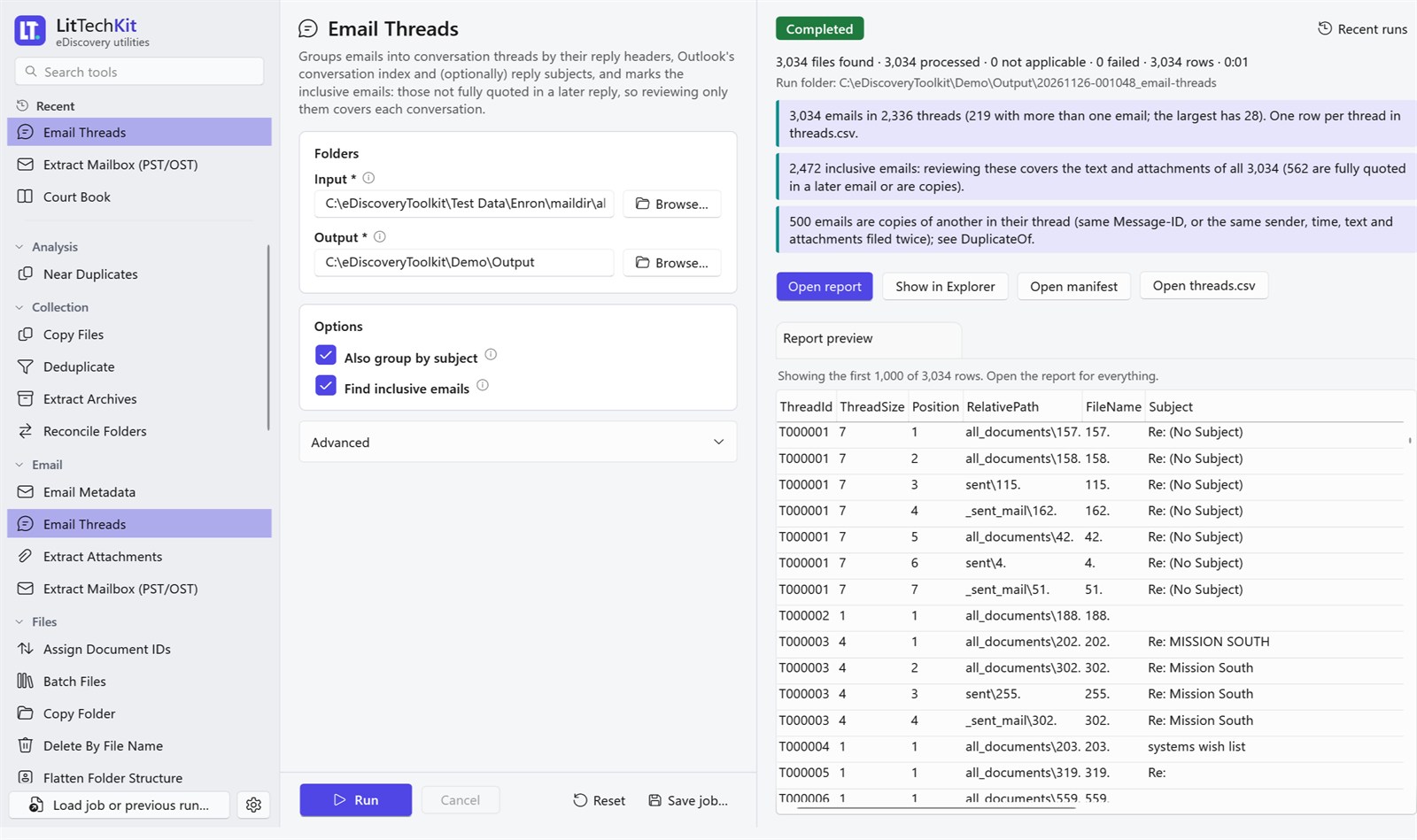
- Choose the folder of emails as Input and an Output folder outside it.
- Leave Also group by subject on for older collections without reply headers; turn it off to group only by reply headers and Outlook's conversation index.
- Leave Find inclusive emails on to mark inclusive emails.
- Click Run. The emails are read first; threads are built once all have been read.
- Read the notes for the totals, then click Open report.
- Open
threads.csvin the run folder for one row per thread.
Settings
Every setting has the same help beside it in the app. On the command line, pass each as --name value; ltk help email-threads lists them.
Settings
| Setting | What it does | Type and default |
|---|---|---|
Also group by subject--match-subjects |
For emails without reply headers (common in older collections), a reply or forward (RE:, FW:…) joins an email with the same subject when they share a sender or recipient. Off: only reply headers and Outlook's conversation index group emails. Only used to join a reply or forward (RE:, FW:, Fwd:, AW:, WG:, SV:, TR: and similar, plus tags such as [External]) to an earlier email with the same remaining subject, and only when they share a sender or recipient. Two unrelated emails that just share a subject are not joined. Rows joined this way show Subject (reply or forward) in GroupedBy. |
yes/notrue |
Find inclusive emails--inclusive |
Mark each email Inclusive when no later email in its thread quotes all of its text and attachments; reviewing only the inclusive emails covers the whole conversation. Reads the body and attachment names of every email in threads of two or more. Turn it off for a faster run when you only need the threads; the Inclusive columns are then left blank. Threads of more than 2,000 emails are not compared: every email in them is marked inclusive with a reason saying so. |
yes/notrue |
Common settings
| Setting | What it does | Type and default |
|---|---|---|
Input required--input |
Folder (or single file) to read. It is opened read-only and never modified. | folder empty |
Output required--output |
Folder for reports. Must not be inside the input folder. Each run gets its own sub-folder. | folder empty |
Recurse--recurse |
Include sub-folders. | yes/notrue |
Extensions--extensions |
Only process these extensions (e.g. .pdf, .docx). Empty means the tool's default set. | list empty |
Parallelism--parallelism |
Files processed at once. Use 1-2 for spinning disks or network shares. Also sets how many threads are compared at once when finding inclusive emails. |
number4 |
What you get
Each run creates its own folder inside the output folder, with the report email-threads.csv, errors.csv and manifest.json (see Run folders and manifests).
email-threads.csv: One row per email, sorted by thread. ThreadId (T000001 …, numbered by each thread's first date), ThreadSize, Position (date order within the thread), GroupedBy (Reply headers, Same Message-ID, Outlook conversation, Subject (reply or forward) or Single email), Inclusive (Yes/No) with InclusiveReason, and DuplicateOf for copies.threads.csv: One row per thread: subject, number of emails, number of inclusive emails, first and last date, number of participants, and the first email's path.
Report columns
ThreadIdThreadSizePositionRelativePathFileNameSubjectFromSentUtcMessageIdGroupedByInclusiveInclusiveReasonDuplicateOfSourcePath
Check the result
- Read the notes: how many threads, the largest thread, how many inclusive emails, and how many copies were found.
- Look at the largest threads in
threads.csv. A very large thread grouped by subject may have joined unrelated conversations; re-run with Also group by subject off to compare. - Filter InclusiveReason for emails whose body could not be read; these are kept as inclusive for review.
- A single email on its own is always inclusive.
- An email whose text is quoted later, but whose attachment was dropped from the reply, stays inclusive, and its reason says so.
- Filter Inclusive = Yes to build the review set, and keep the report to show how the rest were excluded.
- Attachments are compared by file name, not by content. A later email with an attachment of the same name counts as having it.
- The text test needs the earlier email's whole text to appear in the later one. If a reply edits or trims the quoted text, the earlier email stays inclusive, which is the safe direction.
- Threading only sees the emails in this run. Run it over the whole set you intend to review, not batch by batch.
From the command line
The command line is part of LitTechKit Pro. See Command line.
ltk run email-threads --input "D:\Matter\Extracted\files" --output "D:\Matter\Threads" --match-subjects --inclusiveRelated tools
- Extract Mailbox (PST/OST): Extracts every email and other item from Outlook .pst and .ost files into .eml files in the mailbox's folder structure, without Outlook. Optional date range, folder and item-type filters; every item is reported and folder counts are checked.
- Email Metadata: Reads subject, sender, recipients, sent/received dates, Message-ID and attachment names from .msg and .eml files.
- Deduplicate: Finds duplicate files by hash (and duplicate emails by their content), globally or per custodian. Reports every file as Unique, Master or Duplicate, and can copy out one copy of each.
- Near Duplicates: Finds exact and near-duplicate documents in a text export (one .txt per document, named by document ID). Endorsed stamps are removed first, so the same document produced twice with different numbers still matches. Each near-duplicate group has a pivot (its longest document) and every member's similarity to it.