
Court Book
Builds a court book (or appeal book) from a folder of PDFs: a hyperlinked index at the front, consecutive page numbers on every page, and bookmarks for each section and document.
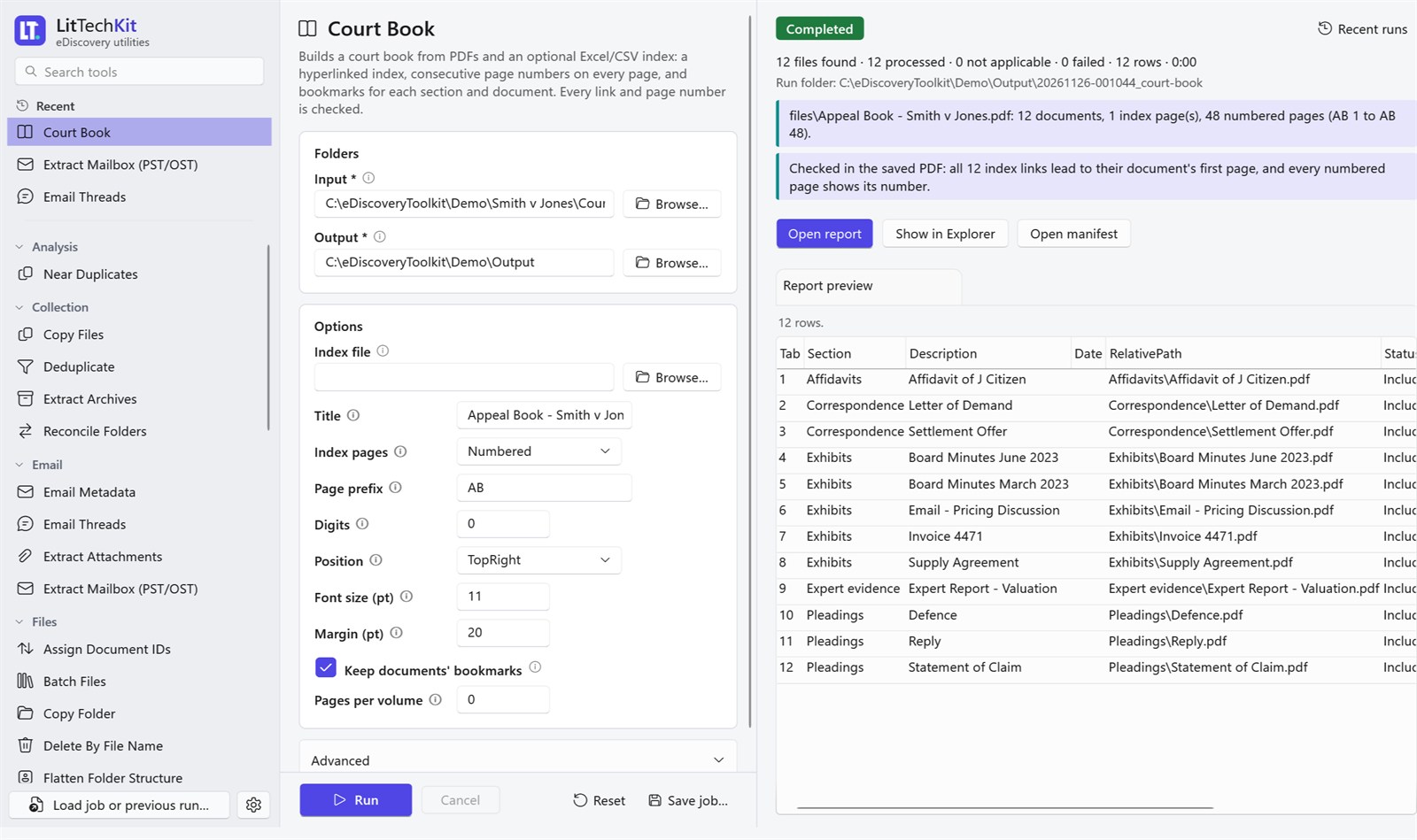
Give the tool a folder of PDFs and, ideally, an Excel or CSV index listing them in order. It puts the index at the front, follows it with every document in that order, stamps a running court book page number on every page, and adds a bookmark for each section and document. Each index entry shows the document's page range and links to its first page.
Before anything is written, the finished PDF is read back and checked: every index link must lead to its document's first page and every numbered page must show its number. If a listed document is missing, is not a PDF or cannot be read, no court book is written and the report says which documents need fixing.
Long books can be split into volumes. Each volume starts with the full index, page numbers run on from one volume to the next, and index links to documents in other volumes open those volumes' files.
Use it when
- Preparing a court book, tender bundle or appeal book from documents that are already PDFs.
- Rebuilding a book after documents are added, removed or re-ordered: change the index and run again.
- The court or registry limits the size of each volume.
How to run it
- Put the documents, as PDFs, in one folder (sub-folders are fine) and choose it as Input. Convert any Word or other files to PDF first.
- Choose an Output folder.
- Choose your Excel or CSV list of documents as Index file, or leave it empty to include every PDF in name order.
- Set the Title, then the page numbering: Index pages, Page prefix, Digits, Position, Font size (pt) and Margin (pt).
- If the book must be in volumes, set Pages per volume (for example 500).
- Click Run, read the notes, then open the court book from the run's
filesfolder and click Open report to check every document was included.
Settings
Every setting has the same help beside it in the app. On the command line, pass each as --name value; ltk help court-book lists them.
Settings
| Setting | What it does | Type and default |
|---|---|---|
Index file--index-file |
Excel (.xlsx) or CSV list of the documents in order, with a File column (name or path in the input folder) and optionally Tab, Section, Description and Date. Empty: every PDF in name order, described by its file name, with sub-folders as sections. Needs a File column (the file name or its path in the input folder; .pdf may be left off). Optional columns are Tab, Section, Description and Date; common variants such as No., File name, Title and Heading are recognised. Rows are used in the order they appear. A date stored as an Excel date becomes dd/MM/yyyy. Without an index, each PDF is described by its file name, tabs are numbered 1, 2, 3 and sub-folder names become sections. |
file empty |
Title--title |
Title at the top of the index, and the PDF's file name. | textCourt Book |
Index pages--index-pages |
Numbered: the index pages are court book pages 1, 2… and the documents follow on. Unnumbered: the first document starts at page 1. Numbered makes the index pages 1, 2… and the first document follows on. Unnumbered leaves the index without numbers so the first document starts at page 1. |
choice: Numbered, UnnumberedNumbered |
Page prefix--page-prefix |
Text before each page number, e.g. CB (giving CB 1) or Court Book page. Empty: just the number. Text before each number, for example CB gives CB 1. Only plain letters, digits, spaces and punctuation can be used. |
text empty |
Digits--digits |
Zero-pad page numbers to this many digits (0: no padding). Zero-pads numbers, so 3 gives CB 001. Use 0 for no padding. |
number0 |
Position--position |
Where the page number goes on each page (as the page is displayed). | choice: BottomRight, BottomCenter, BottomLeft, TopRight, TopCenter, TopLeftTopRight |
Font size (pt)--font-size |
Size of the page numbers in points. | number11 |
Margin (pt)--margin |
Distance of the page numbers from the page edge in points (72 points = 1 inch). | number20 |
Keep documents' bookmarks--bookmarks |
Each document's own bookmarks go beneath its bookmark in the court book. Keeps each document's own bookmarks, nested beneath that document's bookmark in the book. |
yes/notrue |
Pages per volume--volume-pages |
Split the court book into volumes of at most this many pages (e.g. 500), each starting with the full index; documents are never split, and index links to other volumes open those files. 0 (default): one volume. 0 makes one book. Any other value must be at least 10. Documents are never split: a volume closes when the next document would take it over the limit, and a document longer than the limit becomes a volume on its own. The limit counts document pages; the index at the front of each volume is extra. |
number0 |
Common settings
| Setting | What it does | Type and default |
|---|---|---|
Input required--input |
Folder (or single file) to read. It is opened read-only and never modified. | folder empty |
Output required--output |
Folder for reports. Must not be inside the input folder. Each run gets its own sub-folder. | folder empty |
Recurse--recurse |
Include sub-folders. | yes/notrue |
Extensions--extensions |
Only process these extensions (e.g. .pdf, .docx). Empty means the tool's default set. | list empty |
Parallelism--parallelism |
Files processed at once. Use 1-2 for spinning disks or network shares. | number4 |
What you get
Each run creates its own folder inside the output folder, with the report court-book.csv, errors.csv and manifest.json (see Run folders and manifests).
files\<Title>.pdf: The court book. With volumes, one file per volume:files\<Title> - Volume 1.pdf,- Volume 2.pdfand so on.files\<Title> index.xlsx: The index as a workbook: Tab, Section, Description, Date, (Volume,) First page, Last page, Pages and File, ready to check or to hand up as a list of documents.court-book.csv: One row per document: Tab, Section, Description, Date, RelativePath, Status (Included, Missing, Not a PDF, Could not be read, Not in the index), FirstPage, LastPage, Pages, Volume and Notes.
Report columns
TabSectionDescriptionDateRelativePathStatusFirstPageLastPagePagesVolumeNotes
Check the result
- Read the notes: they give the number of documents, index pages and numbered pages, and confirm that every index link and page number was checked.
- In the report, look for any status other than Included. PDFs in the folder that are not in your index are listed as "Not in the index (left out)".
- Read Notes in the report: links inside a document that pointed outside it are removed, documents with form fields are flagged (the fields are not interactive in the book), and over-long documents in a volumed book are noted.
- Open the book and page through the index, a few links and the bookmarks.
- If a document has form fields whose values must be visible, flatten it first with Flatten PDFs.
- If two PDFs in different sub-folders have the same name, give the path in the index's File column; a bare name that matches more than one file is treated as missing.
- The index uses a built-in font. Characters it cannot show appear as
?, and a note says so; check names with accents or symbols. - Remove passwords from encrypted PDFs first with Decryption; an encrypted document stops the book being built.
- Keep all the volumes of a book in the same folder, with their file names unchanged: links to documents in other volumes open those files by name.
- Only volume 1's index pages can be numbered; the index repeated at the front of later volumes carries no page numbers.
- Nothing is written if any listed document has a problem. Fix the documents shown in Status and run again.
From the command line
The command line is part of LitTechKit Pro. See Command line.
ltk run court-book --input "D:\Matter\Court Book\Documents" --output "D:\Matter\Court Book\Out" --index-file "D:\Matter\Court Book\index.xlsx" --title "Appeal Book" --page-prefix AB --volume-pages 500Related tools
- Convert To PDF: Converts Word, Excel, PowerPoint, RTF, text, email (.eml, .msg) and image files (including multi-page TIFFs) to PDF using the Microsoft Office on this PC, from read-only working copies with macros and external links disabled, keeping saved values and showing hidden content, and reports the page count of each PDF. AutoCAD drawings (.dwg, .dxf, R14 and later) are converted without AutoCAD, one page per layout.
- Decryption: Removes known passwords from PDF, Word, Excel and PowerPoint files, writing unlocked copies and reporting which password number opened each file (the passwords themselves are never saved). Encrypted .docx/.xlsx/.pptx files are decrypted without Office, so the unlocked copy is the original document exactly.
- Combine PDFs: Combines PDFs into one: all of them, one per folder (e.g. an email with its attachments), or one per family by name. Each document is bookmarked, with its own bookmarks kept beneath.
- Hyperlink Index: Makes a linked copy of an Excel or Word index/privilege log in which every document ID or file name links to the matching file.