
Extract Mailbox (PST/OST)
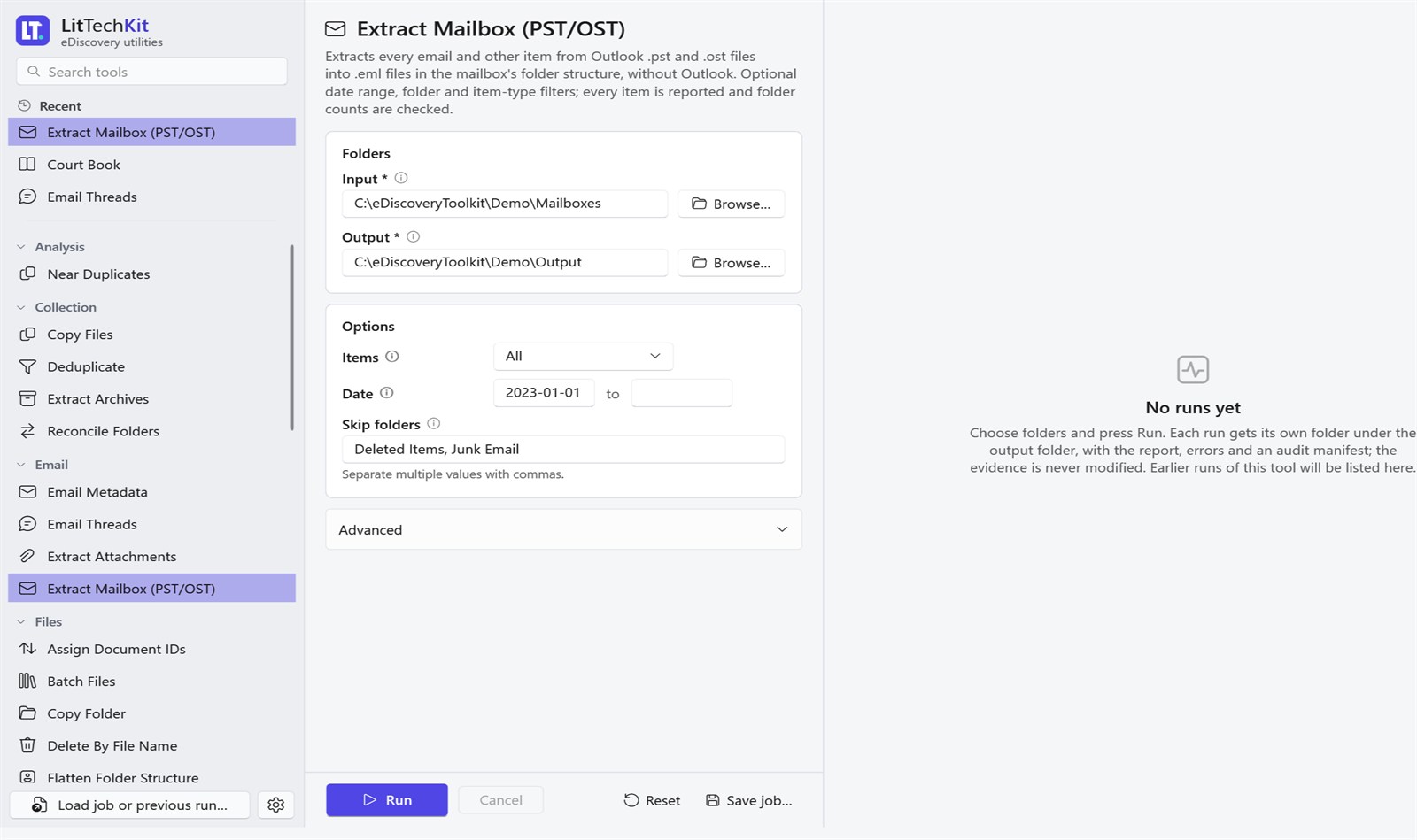
Extracts every email and other item from Outlook .pst and .ost files into .eml files in the mailbox's own folder structure, without needing Outlook, and reports every item.
Extract Mailbox reads Outlook data files directly, so Outlook does not need to be installed. Each item becomes one .eml file under a folder named after the mailbox file, inside the mailbox's own folders (Inbox, Sent Items, Inbox\Projects and so on).
Received emails keep their original internet headers (Message-ID, Received lines, Date) where the mailbox stored them; other items get headers built from their own details. Attachments and attached emails stay inside each .eml, so the result can go straight into Extract Attachments, Email Metadata, Email Threads, Search or Convert To PDF.
Every item is listed in the report, whether it was extracted or not, and each folder's item count is checked against the count the mailbox records. Outlook's own system folders (views, search folders, rules and similar) are not extracted; a note says how many items they held.
Use it when
- A custodian's mail has been collected as a
.pst, or an.ostfrom a forensic image. - You need to cull a mailbox by date range or leave out folders such as Deleted Items before review.
- You need individual email files that the rest of LitTechKit can process.
How to run it
- Close Outlook, or remove the data file from Outlook's folder list, if the mailbox is on this computer.
- Choose the folder holding the
.pst/.ostfiles (or one file) as Input, and an Output folder outside it. - Choose Items: All, or EmailsOnly.
- If needed, enter a From date and To date (yyyy-mm-dd) and any Skip folders.
- Click Run.
- Read the notes in the result panel, then click Open report and check the Status column.
Settings
Every setting has the same help beside it in the app. On the command line, pass each as --name value; ltk help extract-mailbox lists them.
Settings
| Setting | What it does | Type and default |
|---|---|---|
Items--items |
All (default): every item, including calendar items, contacts, tasks and notes. EmailsOnly: emails, meeting requests and delivery reports. EmailsOnly keeps emails, meeting requests and delivery reports, and leaves out calendar items, contacts, tasks and notes. Left-out items are still listed in the report with the status Not extracted: not an email. Non-email items that are extracted carry an X-Outlook-Item-Type header showing their Outlook type. |
choice: All, EmailsOnlyAll |
From date--date-from |
Only items dated on or after this day (yyyy-mm-dd), by sent date, else received date. Empty: no lower limit. Items outside the range are listed in the report but not extracted. Uses the sent date, or the received date if there is no sent date. Items with no date at all are left out whenever a date range is set, and their row says so. A date in any other form than yyyy-mm-dd stops the run before anything is extracted. |
text empty |
To date--date-to |
Only items dated on or before this day (yyyy-mm-dd). Empty: no upper limit. Includes the whole of the To day. If the To date is before the From date, the run stops. |
text empty |
Skip folders--skip-folders |
Folders to leave out, by name or path (e.g. Deleted Items, Inbox\Newsletters); their sub-folders are left out too. Their items are listed in the report but not extracted. A plain name (such as Deleted Items) leaves out every folder with that name at any level. A path (such as Inbox\Newsletters) leaves out that folder only. Sub-folders of a left-out folder are left out too. Separate several entries with commas on the command line. |
list empty |
Common settings
| Setting | What it does | Type and default |
|---|---|---|
Input required--input |
Folder (or single file) to read. It is opened read-only and never modified. | folder empty |
Output required--output |
Folder for reports. Must not be inside the input folder. Each run gets its own sub-folder. | folder empty |
Recurse--recurse |
Include sub-folders. | yes/notrue |
Extensions--extensions |
Only process these extensions (e.g. .pdf, .docx). Empty means the tool's default set. | list empty |
Parallelism--parallelism |
Files processed at once. Use 1-2 for spinning disks or network shares. | number4 |
What you get
Each run creates its own folder inside the output folder, with the report extract-mailbox.csv, errors.csv and manifest.json (see Run folders and manifests).
files\<mailbox file>\<folders>\000001 Subject.eml …: One.emlper extracted item, numbered in the order read and named after the subject. The file's modified date is set to the item's date.extract-mailbox.csv: One row per item in each mailbox: Mailbox, ItemNumber, Folder, ItemType (Outlook's class, e.g. IPM.Note, IPM.Appointment), headers, Attachments and AttachmentNames, Status (Extracted, Not extracted with the reason, or Error), Destination and MD5 of the.eml, and Details for any problem.errors.csv: Mailboxes that could not be opened and items that could not be extracted.
Report columns
MailboxItemNumberFolderItemTypeSubjectFromToCcSentUtcReceivedUtcMessageIdAttachmentsAttachmentNamesStatusDestinationMD5DetailsSourcePath
Check the result
- Read the notes: each mailbox reports any folder whose recorded item count differs from the number that could be read, and any folder that could not be read at all.
- Filter Status for Error, and read Details for items where an attachment or body could not be read.
- Confirm the counts of Extracted and Not extracted items match the filters you set.
- In the free edition, a mailbox counts as the number of items it holds, not as one file, towards the 25-document limit.
- Embedded OLE objects cannot be extracted as attachments; the item's Details column says when one was left out.
- Exchange-internal addresses that are not internet addresses are kept as stored rather than dropped.
- Run Extract Attachments on the
filesfolder afterwards to take the attachments out with family IDs.
- A mailbox Outlook has open is locked. The tool does not read it and reports the problem in
errors.csv: close Outlook (or remove the file from Outlook's folder list), wait a few minutes and run again. If the file is merely in use rather than locked, a copy is taken at the start of the run and read instead; a note says so, and the copy is deleted afterwards. - Dates in the report and the date filter are in UTC. An email sent early in the morning in Australia may fall on the previous UTC day, so widen the range by a day if the boundary matters.
- A file that is not a real Outlook data file is reported as an error and skipped.
From the command line
The command line is part of LitTechKit Pro. See Command line.
ltk run extract-mailbox --input "D:\Matter\Collections\Smith" --output "D:\Matter\Extracted" --items EmailsOnly --date-from 2023-07-01 --date-to 2024-06-30 --skip-folders "Deleted Items"Related tools
- Extract Attachments: Extracts attachments (and attached emails, recursively) from .msg and .eml files into a new folder, with family IDs, verified hashes and safe file names.
- Email Metadata: Reads subject, sender, recipients, sent/received dates, Message-ID and attachment names from .msg and .eml files.
- Email Threads: Groups emails into conversation threads by their reply headers, Outlook's conversation index and (optionally) reply subjects, and marks the inclusive emails: those not fully quoted in a later reply, so reviewing only them covers each conversation.
- Deduplicate: Finds duplicate files by hash (and duplicate emails by their content), globally or per custodian. Reports every file as Unique, Master or Duplicate, and can copy out one copy of each.