
Bates Stamp
Stamps sequential Bates numbers, and an optional legend such as CONFIDENTIAL, on every page of a set of PDFs, writing stamped copies and a Beg/End Bates report.
Bates Stamp numbers every page of every PDF in the input folder, one document after another, and writes stamped copies to the run folder. The originals are not changed. Each document's first and last numbers go into the report, ready for an index or load file.
Numbers are worked out for the whole set before any stamping starts, in folder order. The same input with the same settings always gets the same numbers, however many files are processed at once. The stamp is placed in the chosen corner as the page is displayed, so it sits correctly on rotated pages and on pages with a crop box, and the page size and rotation are left as they were.
Use it when
- You are preparing a production and each page needs a unique, sequential Bates number.
- A production or a tranche of a production needs a legend such as CONFIDENTIAL or PRIVILEGED on every page as well as its number.
- You are continuing the numbering of an earlier production from the next available number.
How to run it
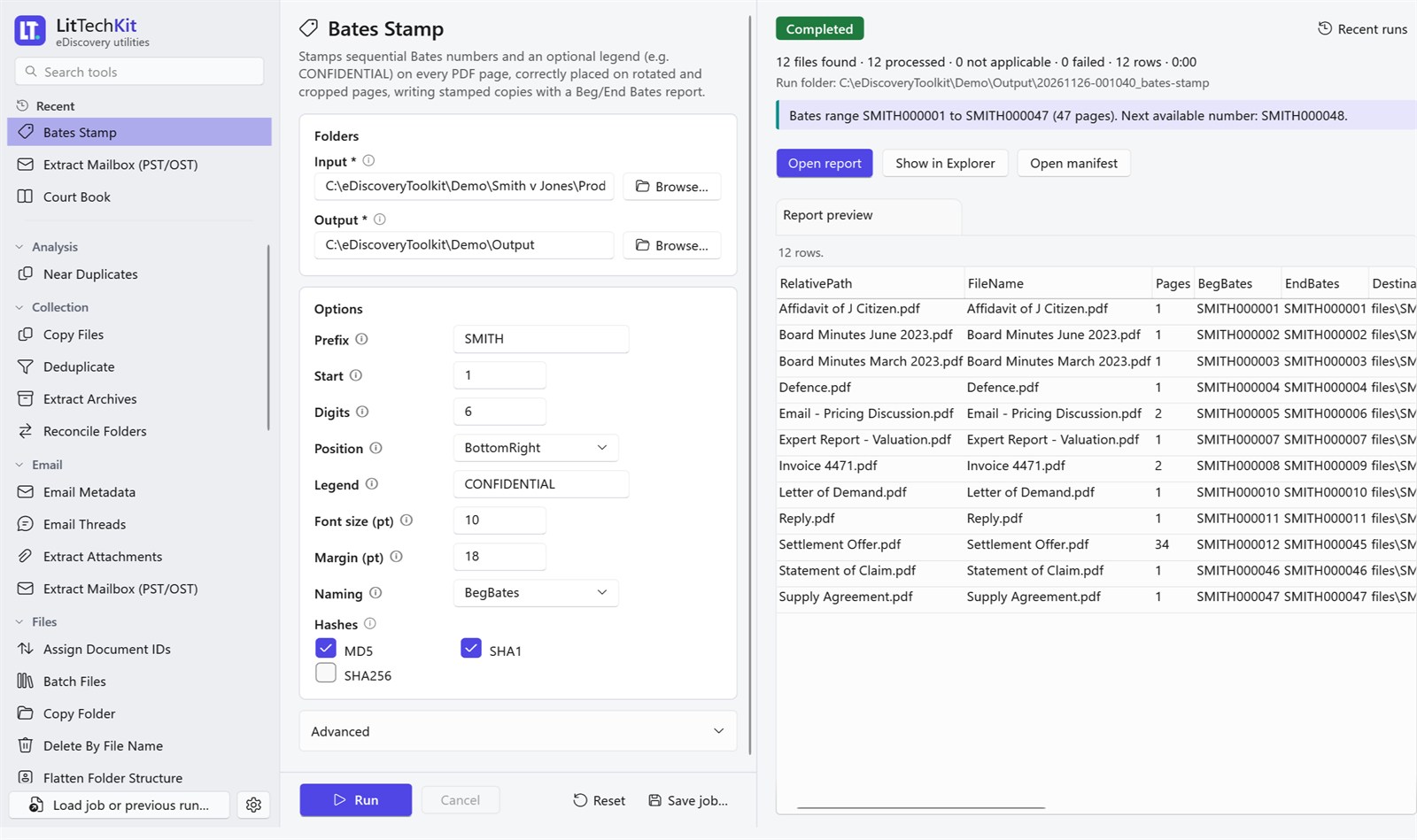
- Put the PDFs to be produced in one folder, in the order they should be numbered, and choose it as Input. Only
.pdffiles are stamped. - Choose an Output folder outside the input folder.
- Set prefix, start and digits, for example
ABC,1and6to produceABC000001onwards. - Choose the position of the number and, if needed, type a legend.
- Choose naming:
BegBatesnames each file after its first number;Originalkeeps the existing names and folders. - Click Run, then read the notes for the range used and the next available number.
- Click Open report to check the Beg and End Bates of each document, and look at
errors.csv.
Settings
Every setting has the same help beside it in the app. On the command line, pass each as --name value; ltk help bates-stamp lists them.
Settings
| Setting | What it does | Type and default |
|---|---|---|
Prefix--prefix |
Bates prefix, e.g. ABC or ABC_ (letters, digits, space, - _ . only). Letters, digits, space, hyphen, underscore and full stop only; anything else stops the run before it starts. Include any separator you want in the prefix itself, e.g. ABC_. |
textPROD |
Start--start |
First Bates number. For a later tranche, use the Next available number from the notes of the previous run so the numbering carries on without a gap or overlap. |
number1 |
Digits--digits |
Number of digits, zero-padded (6 gives PROD000001). Between 1 and 12. If the whole set needs more numbers than the digits allow, the run stops with a message saying the numbers ran out; increase digits and run again. |
number6 |
Position--position |
Where the Bates number goes on each page (as the page is displayed). | choice: BottomRight, BottomCenter, BottomLeft, TopRight, TopCenter, TopLeftBottomRight |
Legend--legend |
Optional legend on every page, e.g. CONFIDENTIAL. Placed in the opposite corner of the same edge. Plain keyboard characters only. It goes in the opposite corner of the same edge as the number (bottom-left when the number is bottom-right); with a centred number it goes at the centre of the other edge. |
text empty |
Font size (pt)--font-size |
Text size in points. Between 4 and 72 points. The number and legend are printed in black Helvetica. |
number10 |
Margin (pt)--margin |
Distance from the page edge in points (72 points = 1 inch). Between 0 and 288 points, measured from the edge of the visible page. Increase it if the stamp sits over a footer or page number. |
number18 |
Naming--naming |
BegBates: name each stamped file after its first Bates number (all in one folder). Original: keep names and folders. With BegBates every stamped file goes into one folder, named like ABC000001.pdf. Use Original when the folder structure (for example custodian folders) must be kept. |
choice: BegBates, OriginalBegBates |
Hashes--hashes |
Hashes to record for each stamped file. Each stamped file is written, then read back and checked against the chosen hashes; the Verification column records this. |
choices: MD5, SHA1, SHA256MD5,SHA1 |
Common settings
| Setting | What it does | Type and default |
|---|---|---|
Input required--input |
Folder (or single file) to read. It is opened read-only and never modified. | folder empty |
Output required--output |
Folder for reports. Must not be inside the input folder. Each run gets its own sub-folder. | folder empty |
Recurse--recurse |
Include sub-folders. | yes/notrue |
Extensions--extensions |
Only process these extensions (e.g. .pdf, .docx). Empty means the tool's default set. | list empty |
Parallelism--parallelism |
Files processed at once. Use 1-2 for spinning disks or network shares. | number4 |
What you get
Each run creates its own folder inside the output folder, with the report bates-stamp.csv, errors.csv and manifest.json (see Run folders and manifests).
files\ABC000001.pdf …: The stamped copies, named by Beg Bates or by their original names and folders, depending on naming.bates-stamp.csv: One row per document: Pages, BegBates, EndBates, the Destination of the stamped copy, the chosen hashes and Verification.errors.csv: Documents that could not be read or stamped, with the reason.
Report columns
RelativePathFileNamePagesBegBatesEndBatesDestinationMD5SHA1SHA256VerificationSourcePath
Check the result
- Read the notes: they give the full Bates range, the page count and the next available number.
- Check
errors.csv. A PDF that cannot be read at all is skipped before numbering and does not use any numbers. A PDF that fails during stamping has already been given its numbers; the notes list those ranges, which will show as gaps. - Open a few stamped files, including any landscape or rotated pages, and confirm the number and legend are clear of the page content.
- Run Bates QC over the stamped files to confirm there are no gaps and every page shows its number.
- Number order follows the folder order of the input. If the order matters (for example by custodian, then date), arrange or rename the files first.
- The stamp is added as real text, so it can be searched and is what Bates QC reads when it checks each page.
- Keep the run folder's
manifest.jsonwith the production record: it holds the settings used and the hashes.
- A failure during stamping leaves a gap in the numbering. Either fix the document and re-run the whole set, or record the gap in the production log.
- Re-running with the same start number on a different set of files produces different documents with the same numbers. Always take the start from the previous run's notes when adding a tranche.
- The free edition stamps up to 25 documents per run.
From the command line
The command line is part of LitTechKit Pro. See Command line.
ltk run bates-stamp --input "D:\Matter\Production 1\PDFs" --output "D:\Matter\Production 1\Stamped" --prefix ABC --start 1 --digits 6 --legend CONFIDENTIALRelated tools
- Bates QC: Checks a Bates-numbered production for gaps, overlaps, duplicates and padding problems, and that every PDF page shows the right Bates number.
- Convert To PDF: Converts Word, Excel, PowerPoint, RTF, text, email (.eml, .msg) and image files (including multi-page TIFFs) to PDF using the Microsoft Office on this PC, from read-only working copies with macros and external links disabled, keeping saved values and showing hidden content, and reports the page count of each PDF. AutoCAD drawings (.dwg, .dxf, R14 and later) are converted without AutoCAD, one page per layout.
- Create Load File: Creates a Concordance DAT and Opticon OPT load file for a production folder, grouping natives, images and text by Bates number.
- Watermark PDFs: Adds a large semi-transparent text watermark (e.g. CONFIDENTIAL) across every page, diagonal by default and sized to fit, correct on rotated and cropped pages. Behind content keeps text readable and still shows on scanned pages.